

Requires Core plan or higher.
- Controlling cloud infrastructure costs from forgotten environments
- Ensuring resources are available for other team members
- Preventing “never timeout” settings that waste compute
Configuration
Set the maximum auto-stop timeout to 30 minutes, 1 hour, 3 hours, 8 hours, or No max timeout.Effect on users
Users only see auto-stop timeout options up to the policy maximum. For example, with a 3-hour maximum, users can select 30 minutes, 1 hour, or 3 hours.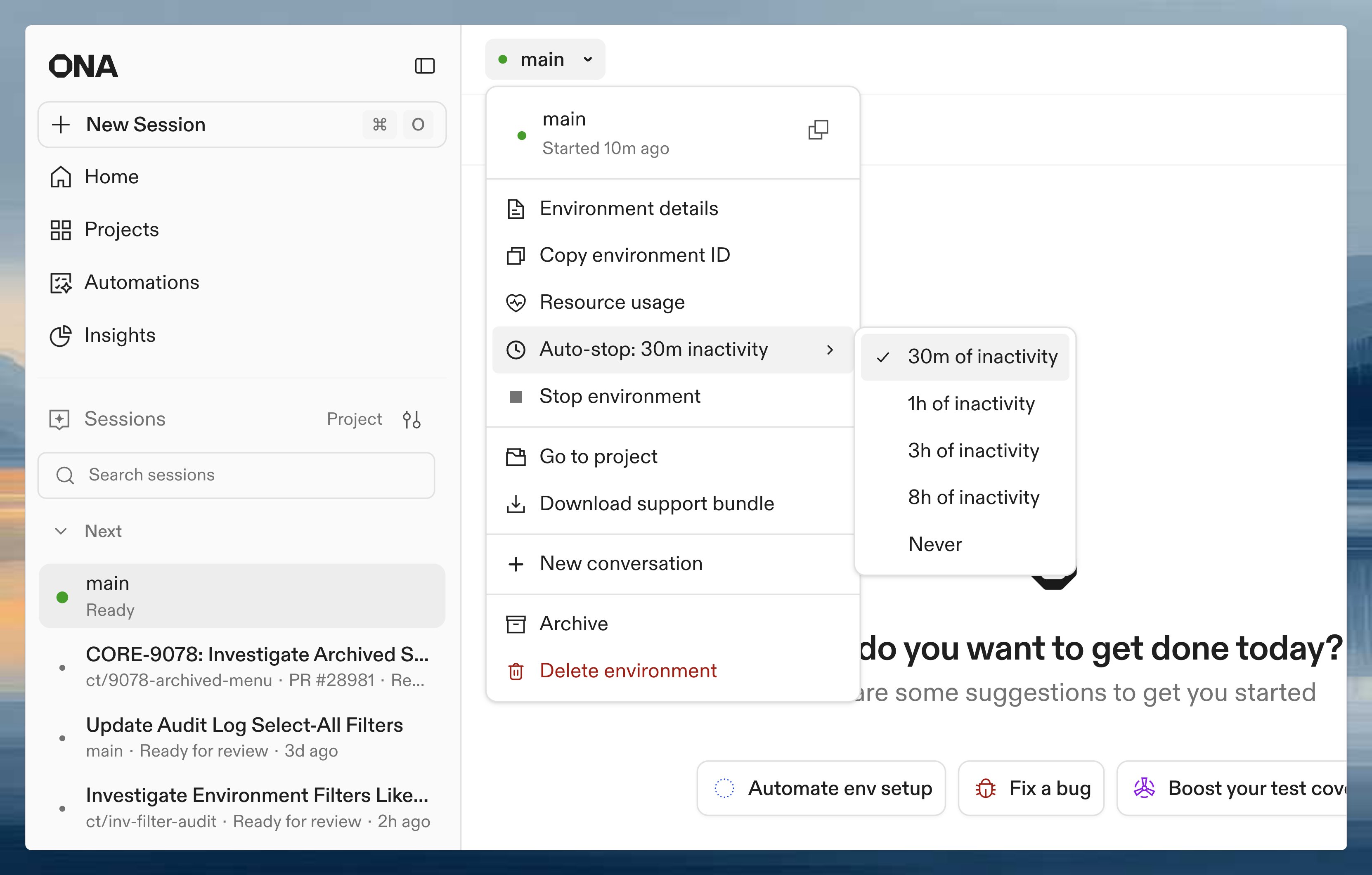
Set a default auto-stop timeout
Available on the Core plan and higher. Contact sales to learn more.
- Open Account settings.
- Under Preferences, select a Default auto-stop timeout.
0s requests that auto-stop is disabled. The CLI is subject to the same plan and organization policy limits as the UI.
When an environment is idle
An environment is not idle as long as any of the following are true:- Plain SSH session is open: Any open SSH connection (terminal, SCP, SFTP, tunnels) prevents the environment from going idle, regardless of user interaction. Connection presence alone is enough. Note: VS Code Desktop opens an SSH connection to the environment, but that connection is excluded from activity tracking. VS Code uses its own activity signals instead.
- VS Code is active (Desktop or Browser): The VS Code extension sends activity signals based on keyboard and mouse interaction. After a short period without interaction, VS Code stops signaling and the environment is considered idle.
- JetBrains Gateway is active: JetBrains sends activity signals based on keyboard and mouse interaction in the IDE. After approximately 5 minutes without interaction, JetBrains stops signaling and the environment is considered idle.
- An agent is running: The environment is not idle while an agent session is executing a task.
- CLI keep-alive is active: The
ona environment keep-alivecommand prevents idle as long as a watched process is running (see below).
- Background processes running inside the environment (builds, servers, cron jobs)
- Port forwarding and shared/exposed port traffic (HTTP requests to forwarded ports)
- File system changes
- CPU or memory usage
Activity is tracked in 5-minute intervals. After the configured auto-stop timeout elapses, the environment may take several more minutes to stop. For example, with a 30-minute timeout, if you go idle at 2:00 PM the environment may stop around 2:35 PM.
Common scenarios
Keep environment alive during long-running tasks
For long-running tasks like simulations, builds, or data processing that may exceed the timeout, use the CLIkeep-alive command to prevent automatic shutdown while a process is running.
The command prevents the environment from going idle by sending signals every 5 minutes while the watched process is alive. When the process terminates, the command exits (propagating the exit code if a command was executed).