Organization admins can share automations with groups, allowing team members to execute pre-built automations on repositories they have access to. This enables platform teams to create reusable automations that other teams can run without needing admin privileges.
Automation sharing is only available on the Enterprise tier. Contact sales to learn more.

How Sharing Works

When you share an automation with a group, members of that group receive the Executor role. Executors can:
  • View the automation (name, description, and steps)
  • Run the automation on any project or repository they have access to
  • View their own execution history and logs
Executors cannot:
  • Edit or delete the automation
  • Share the automation with other groups
  • View executions started by other users
Organization admins retain full control over shared automations, including the ability to edit, delete, and view all executions.

For Admins

Prerequisites

Before sharing an automation:
  1. Create groups with the team members who need access. See Manage Groups for instructions.
  2. Ensure members have project or repository access — Executors can only run automations on projects and repositories they already have access to.

Share an Automation

  1. Open the automation you want to share
  2. Click Share in the top right corner

Share button on automation details page

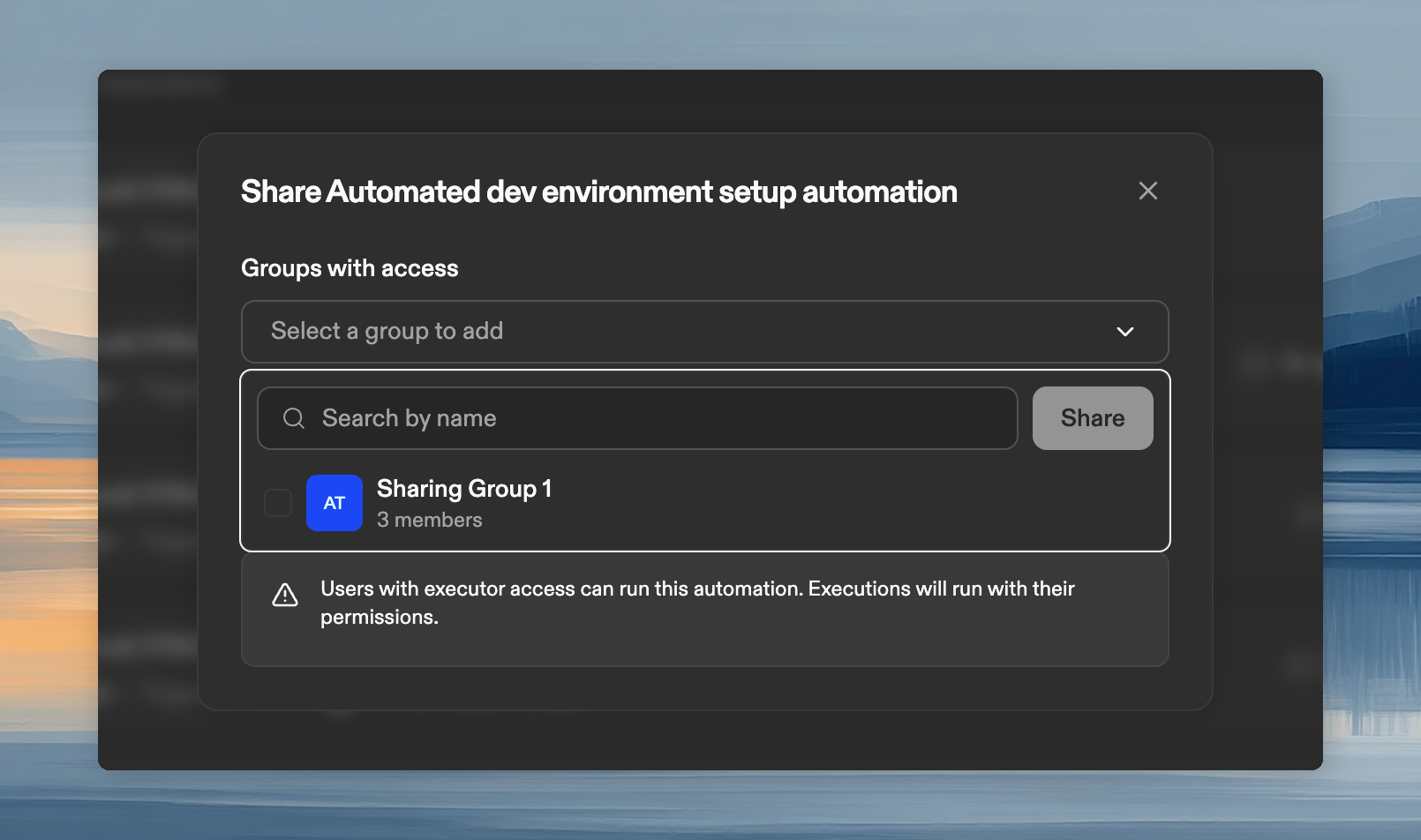
  1. In the Share dialog, click Select a group to add
  2. Select one or more groups from the list
  3. The selected groups receive the Executor role automatically

Share automation dialog with group selection

The groups you select immediately gain access to the automation.

View Groups with Access

To see which groups have access to an automation:
  1. Open the automation
  2. Click Share in the top right corner
  3. View the Groups with access section

Groups with access to the automation

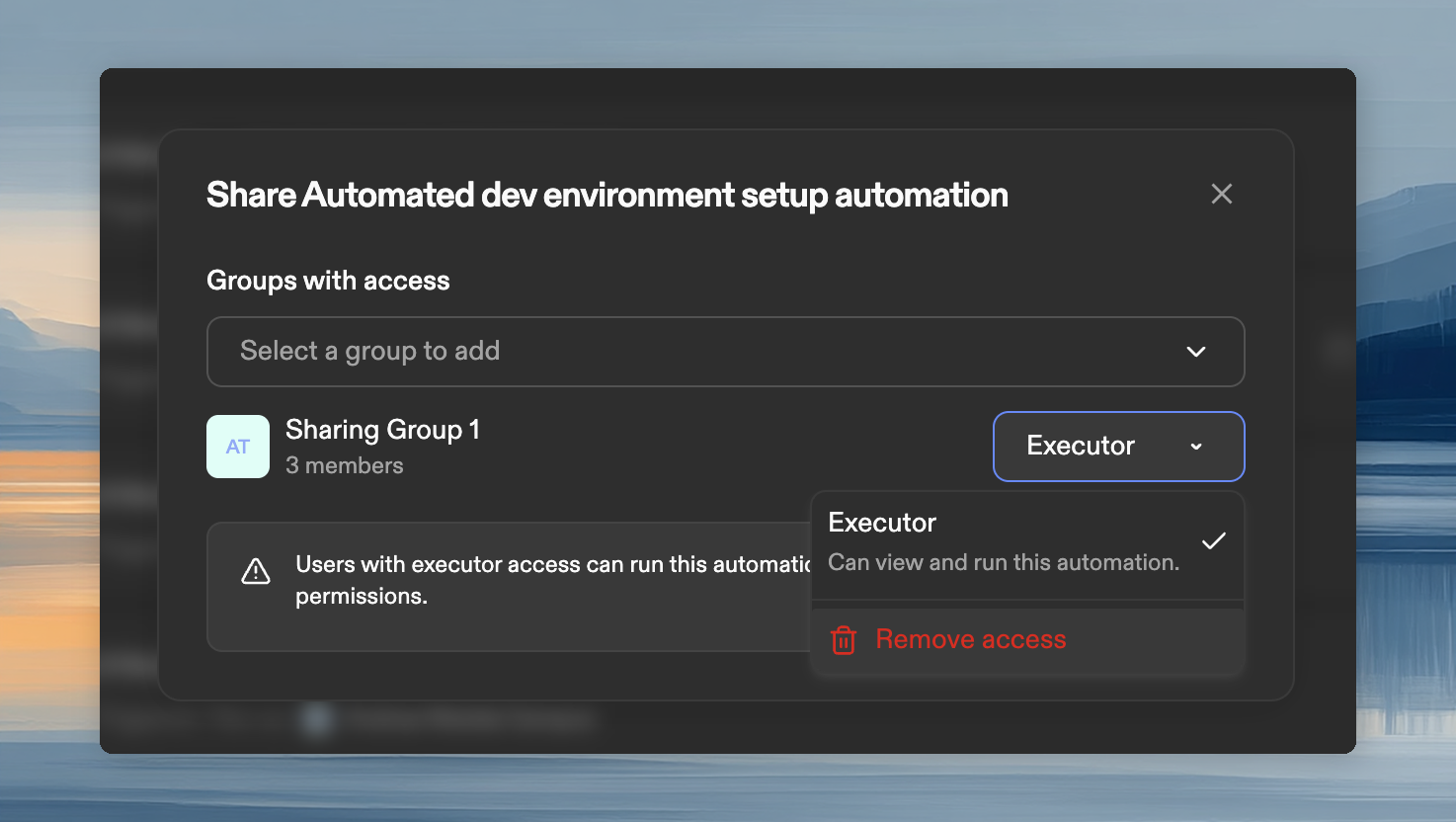
Remove Group Access

  1. Open the automation and click Share
  2. Find the group in the Groups with access section
  3. Click the role dropdown next to the group name
  4. Select Remove access

Remove group access from automation

When you remove a group’s access, members of that group immediately lose the ability to see or run the automation. Their past executions remain visible to admins.

Viewing Executions from Shared Users

As an admin, you can view all executions of an automation, including those started by users with the Executor role:
  1. Open the automation
  2. View the Execution History section
Each execution shows who started it and when. See Running an Automation for details on reviewing execution results.

For Executors

If an admin has shared an automation with a group you belong to, you can run that automation on projects and repositories you have access to.

What You Can See

  • Automations shared with your groups appear in your Automations list
  • You can view the automation’s name, description, and steps
  • You can view executions that you started (not executions from other users)

Run a Shared Automation

  1. Navigate to Automations in the left panel
  2. Find the shared automation and open it
  3. Click Run in the top right corner
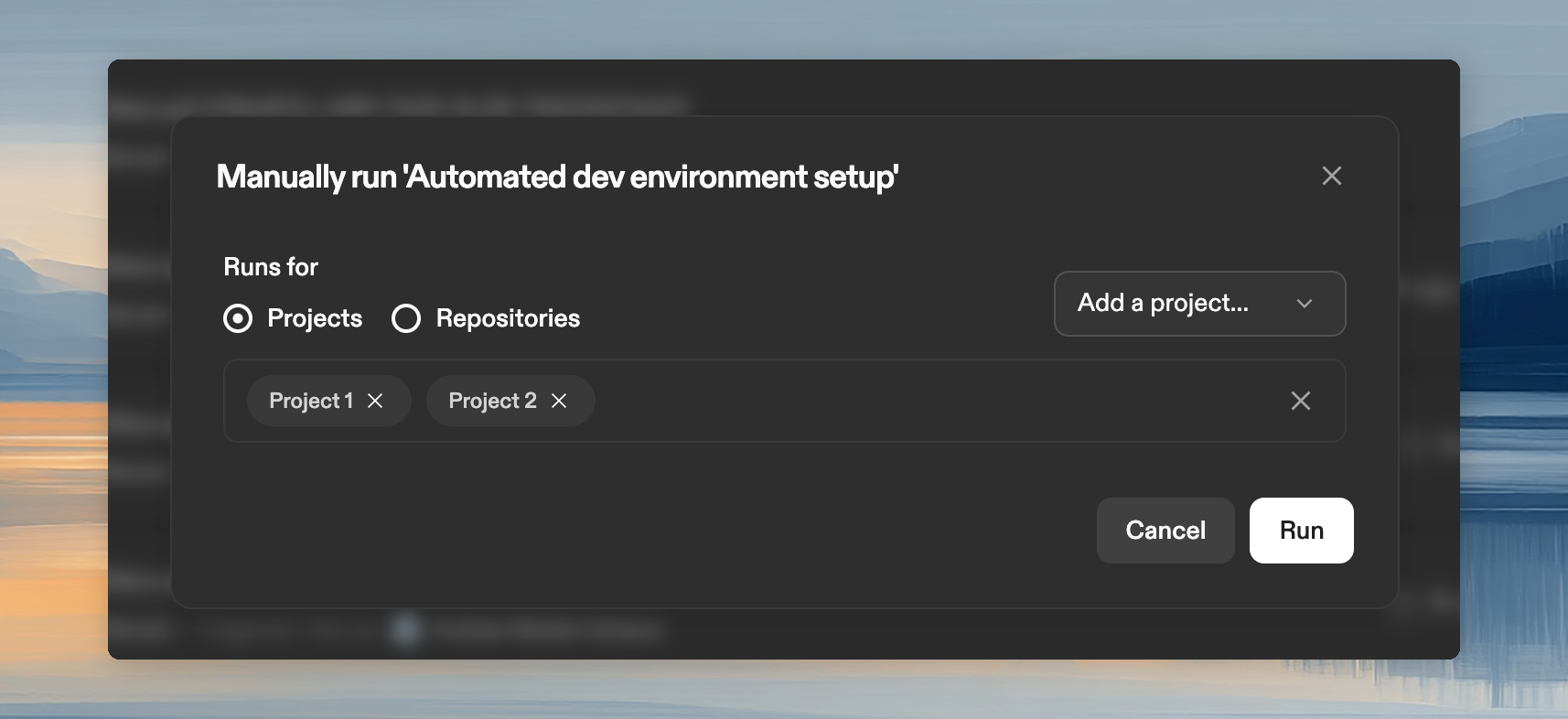
  4. In the Run dialog, select the target project or repository you want to run the automation on

Run automation with project/repository selection

  1. Click Run to start the execution
You can only select projects and repositories you have access to. If you don’t see a project, ask your admin to share it with you. See Sharing Resources for details.
Shared automations run under your user identity. See Execution Identity for details.

Monitor Your Execution

After starting an automation, you’re redirected to execution page where you can monitor progress in real-time. See Running an Automation for details on:
  • Viewing action status
  • Reading execution logs
  • Canceling executions

Execution Identity

When you run a shared automation, it runs under your user identity, not a service account. This means:
  • Commits and pull requests are attributed to your account
  • The automation uses your SCM permissions
  • You must be signed into your SCM provider

Troubleshooting

For common issues with sharing and access, see Troubleshooting.

Next Steps